Foster Portal
Give your foster caregivers a self-service portal to stay connected — reducing the back-and-forth for your admin team.
What Fosters See
When a foster caregiver logs into FosterFlow, they land on their personal foster dashboard. It's intentionally simple — they only see what's relevant to them.
Fosters do not see the admin area or other fosters' animals. Their view is completely separate from your admin dashboard.
Submitting Updates
Fosters can submit three types of updates directly from their portal. When they submit, the update lands in your moderation queue for review before it's added to the pet's record.
This keeps your team informed without requiring constant texting or emailing. Fosters appreciate having one clear place to log their updates.
Requesting Supplies
Fosters can submit a supply request directly from their portal — for food, medications, bedding, toys, or anything else they need. They describe what they need and when, and the request appears in your admin panel.
Supply requests show up in Admin → Foster Submissions alongside other updates, clearly labeled as requests. You can mark them as fulfilled once you've dropped off or shipped the supplies.
This replaces the common pattern of fosters sending individual texts or emails asking for supplies — everything is in one place and nothing gets lost.
Moderation
All foster submissions — notes, photos, and requests — go through a moderation step before they affect any public-facing content. This gives you control over what gets added to a pet's profile.
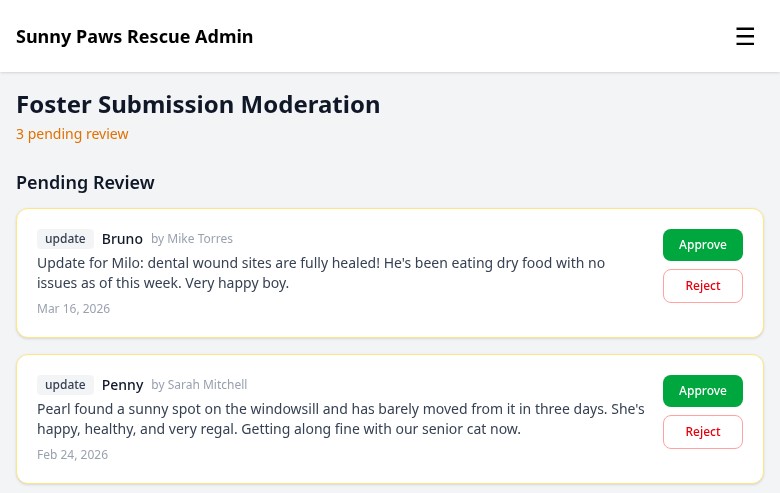
The moderation queue shows all pending foster submissions with options to approve or reject each one.
Go to Admin → Foster Submissions to see the moderation queue. For each submission, you can:
- Preview the note or photo before deciding
- Approve it — the note is added to the pet's record, or the photo is added to their gallery
- Reject it — the submission is dismissed (the foster isn't notified unless you contact them separately)
- Mark supply requests as fulfilled
Most wellness notes won't need any action — approving them just adds them to the pet's internal log. Photo moderation is the most useful step, letting you screen photos before they appear publicly.
Managing Foster Users
Before a foster can log into their portal, you need to create an account for them. Go to Admin → Users → New User and set their role to Foster.
Enter their name and email address. They'll receive an invitation email with a link to set their password. Once they've activated their account, you can assign pets to them from the pet's Foster tab.
To deactivate a foster's access (for example, if they stop fostering), go to their user profile and set their account to inactive. They'll no longer be able to log in, but their history and submissions are preserved.